

Add and manage a catalog in Content Portal
Create, configure, duplicate, and set catalog type in Content Portal.
Admins create catalogs inside an account and control who can browse them. After you create a catalog, import catalog data from the platform and map catalog attributes so users can search, filter, and view assets. To invite users and assign catalogs, see Invite and manage users in Content Portal.
Catalogs list
Go to Settings.
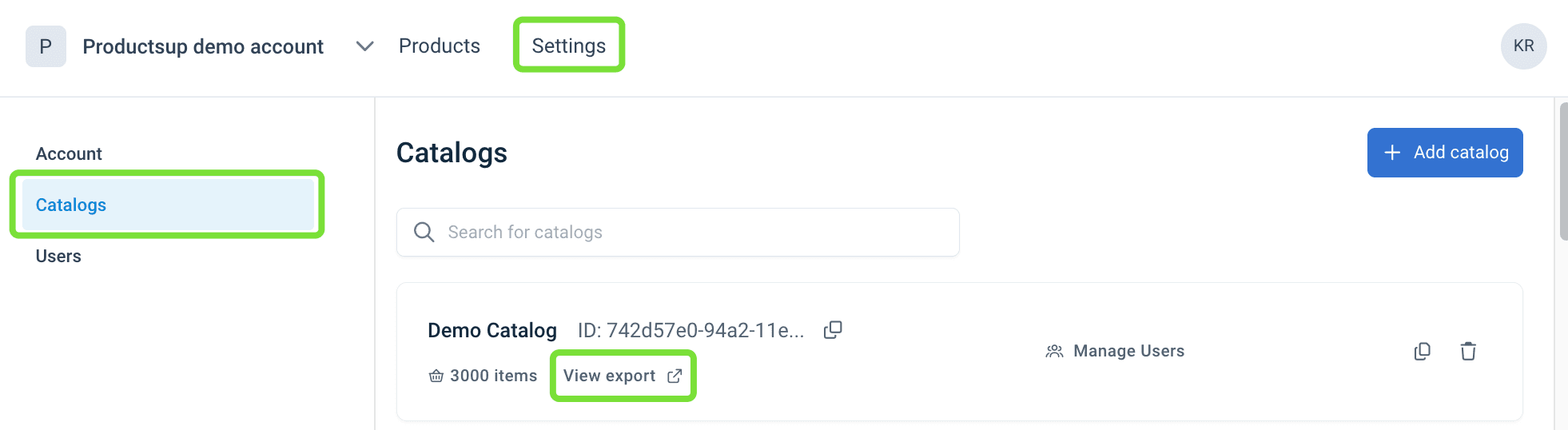
Select Catalogs in the left menu. The Catalogs page lists every catalog inside the account. You can create catalogs, open settings, and manage access from this list.
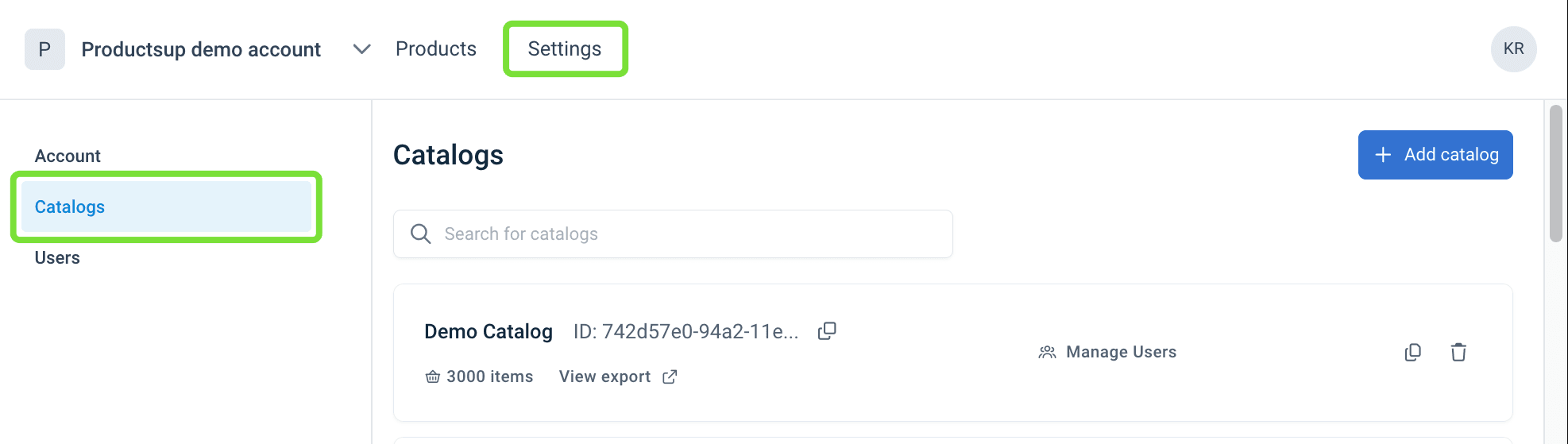
Catalog card
The Catalogs page displays one card for every catalog in the account. Each card shows the catalog identity, product count, and the actions you can take from the list:
- The catalog name
- The catalog ID, which you copy when you import catalog data from the platform into Content Portal
- The number of products in the catalog
- Manage users opens catalog access. See Invite and manage users in Content Portal
- View export takes you to the site export settings in the Productsup platform. See View export.
- A copy icon to duplicate a catalog
- A trash bin icon to delete the catalog

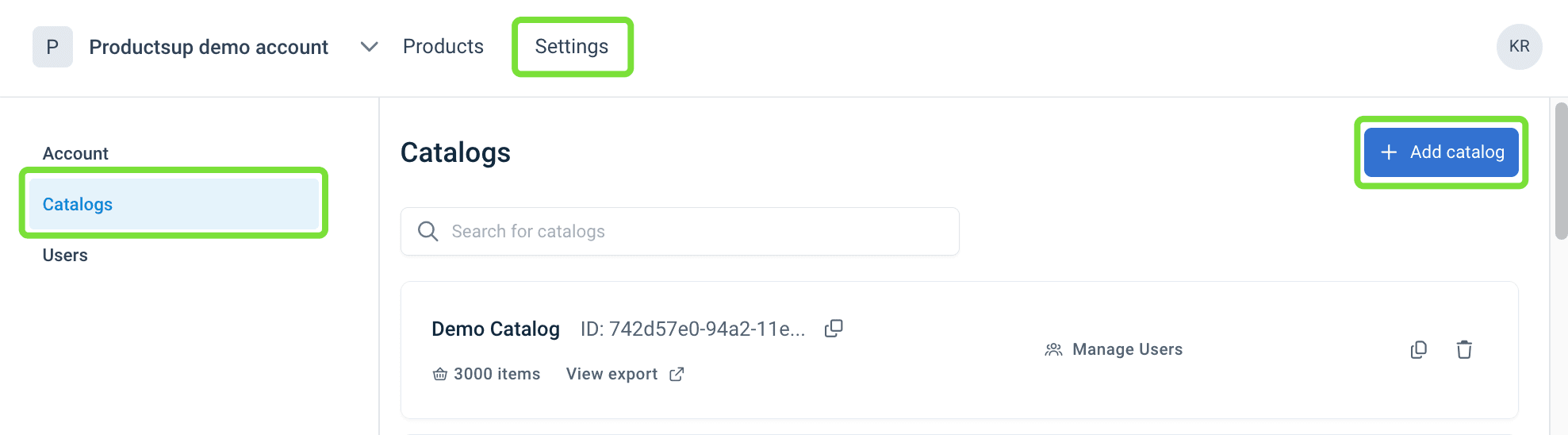
Add a catalog
Go to Settings.
Select Catalogs.
Select Add Catalog.
Enter a Name and, optionally, a Description.
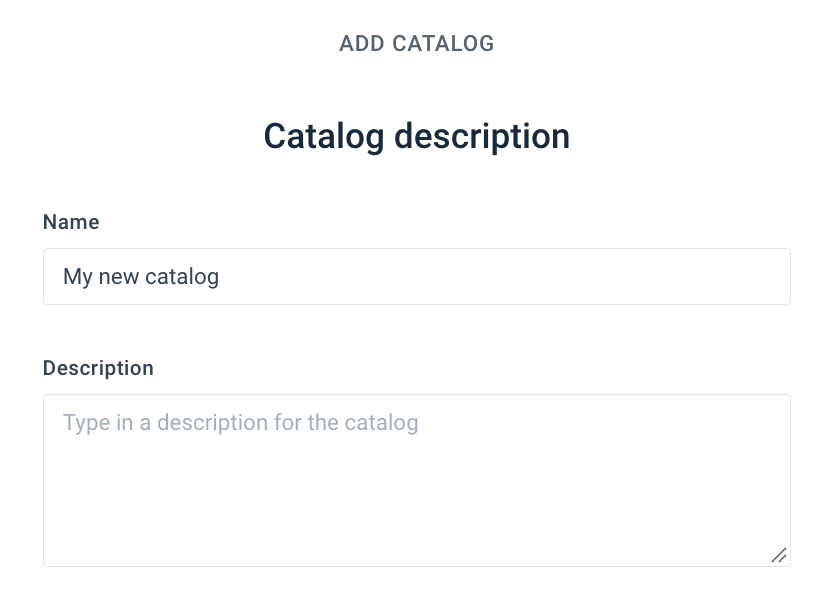
Select Save. The new catalog appears in the catalogs list.
Caution
The new catalog stays empty until you export product data from the platform into it. See Import catalog data from the platform into Content Portal for more information.
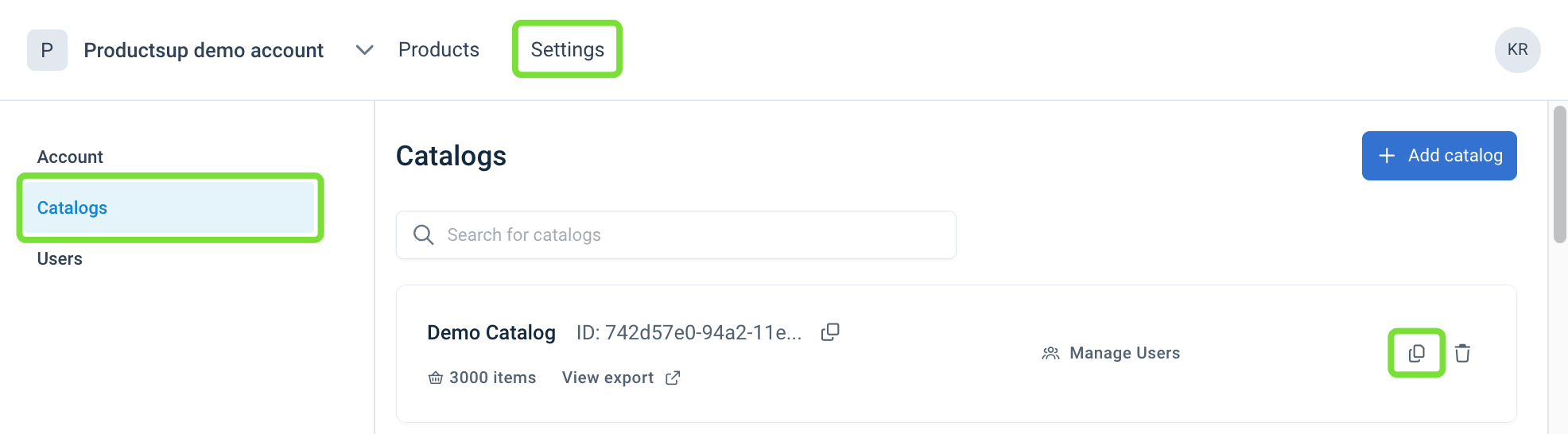
Duplicate a catalog
Duplicating a catalog copies settings so you can create a regional or seasonal variant without repeating the setup.
Go to Settings.
Select Catalogs.
Select the copy icon on the card of the catalog you want to duplicate.
Select the elements to carry over to the new catalog:
- Product data
- Catalog visibility
- Catalog description
- Invited users
- Attribute groups
- Filter categories
- Asset attributes
- Searchable attributes
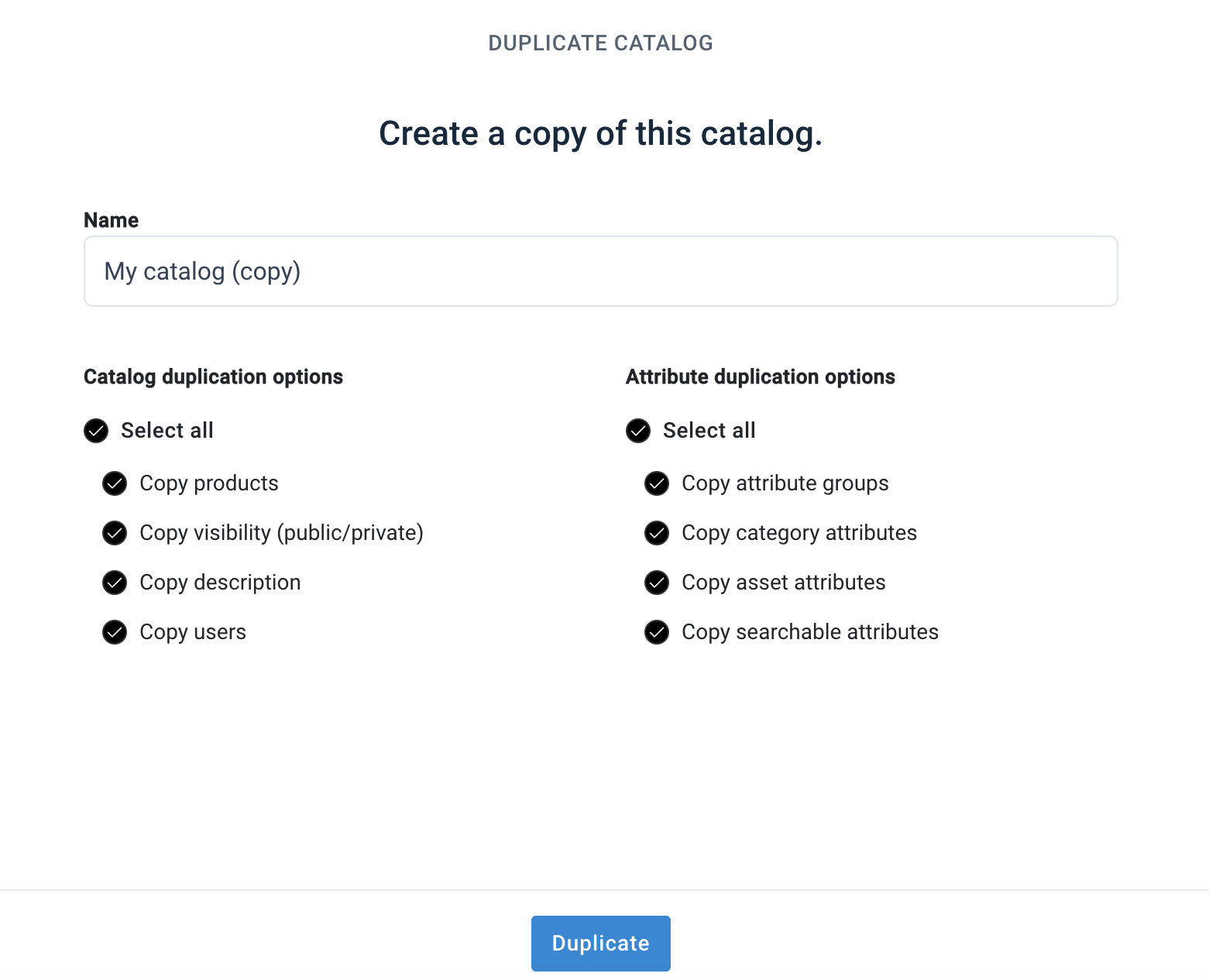
Select Duplicate.
Public and private catalogs
For what private and public catalogs mean, see Accounts and catalogs in First steps with Content Portal. After the first export, you can change who can access the catalog.
Go to Settings.
Select Catalogs.
Select the catalog card.
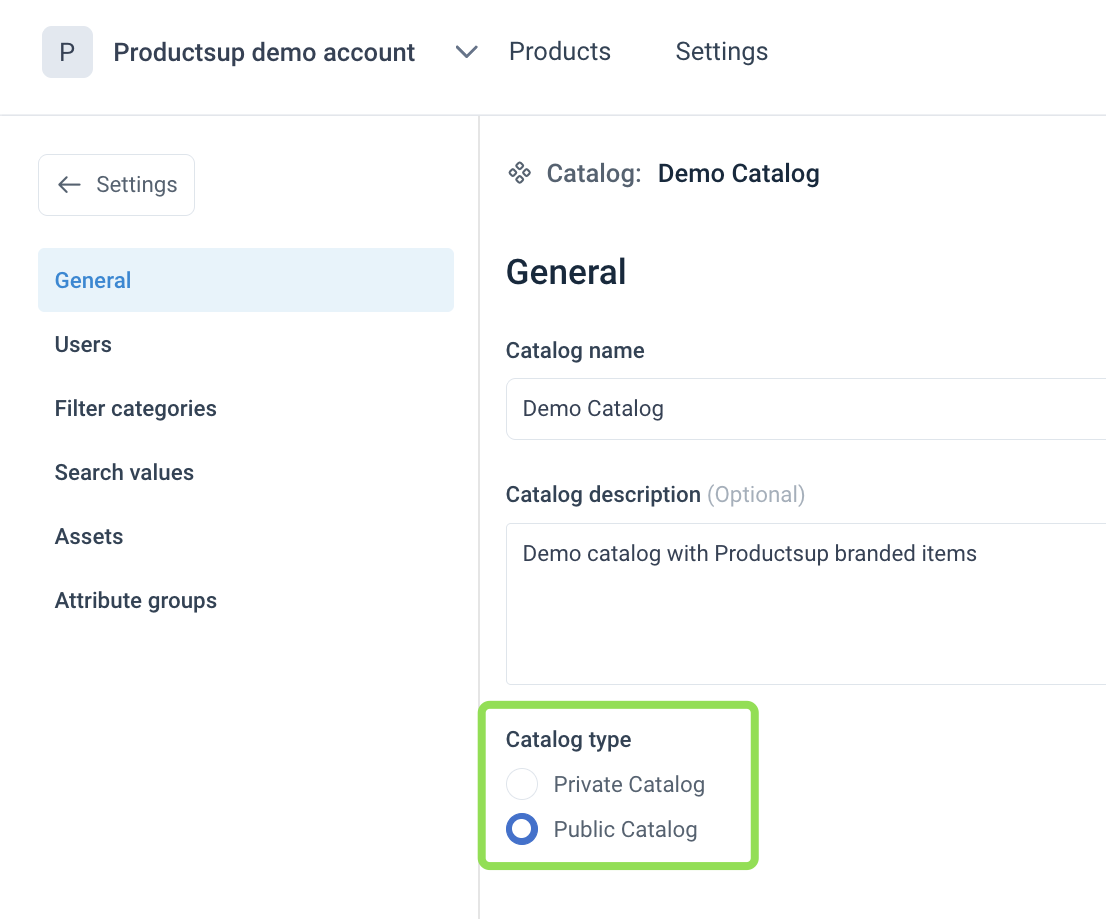
In Catalog type, choose one of the following:
- Private Catalog — only invited users with access to this catalog can open it
- Public Catalog — anyone with the catalog link can open it without logging in. Anonymous users can also download products and assets
Caution
Keep catalogs private when the product data should stay limited to invited users only.
View export
To troubleshoot data import from the platform, you may need to find and open the export connected to the catalog.
Go to Settings.
Select Catalogs.
Select View export. The platform opens the export settings connected to the catalog.
How is this guide?