

Invite and manage users in Content Portal
Invite Admins and Users, assign catalogs, and manage access in the Productsup Content Portal.
Admins invite users at the account level. You open account settings, send an invitation by email, assign a role, and choose which catalogs each user can access. The invited user must accept the invitation in their email before they can use Content Portal.
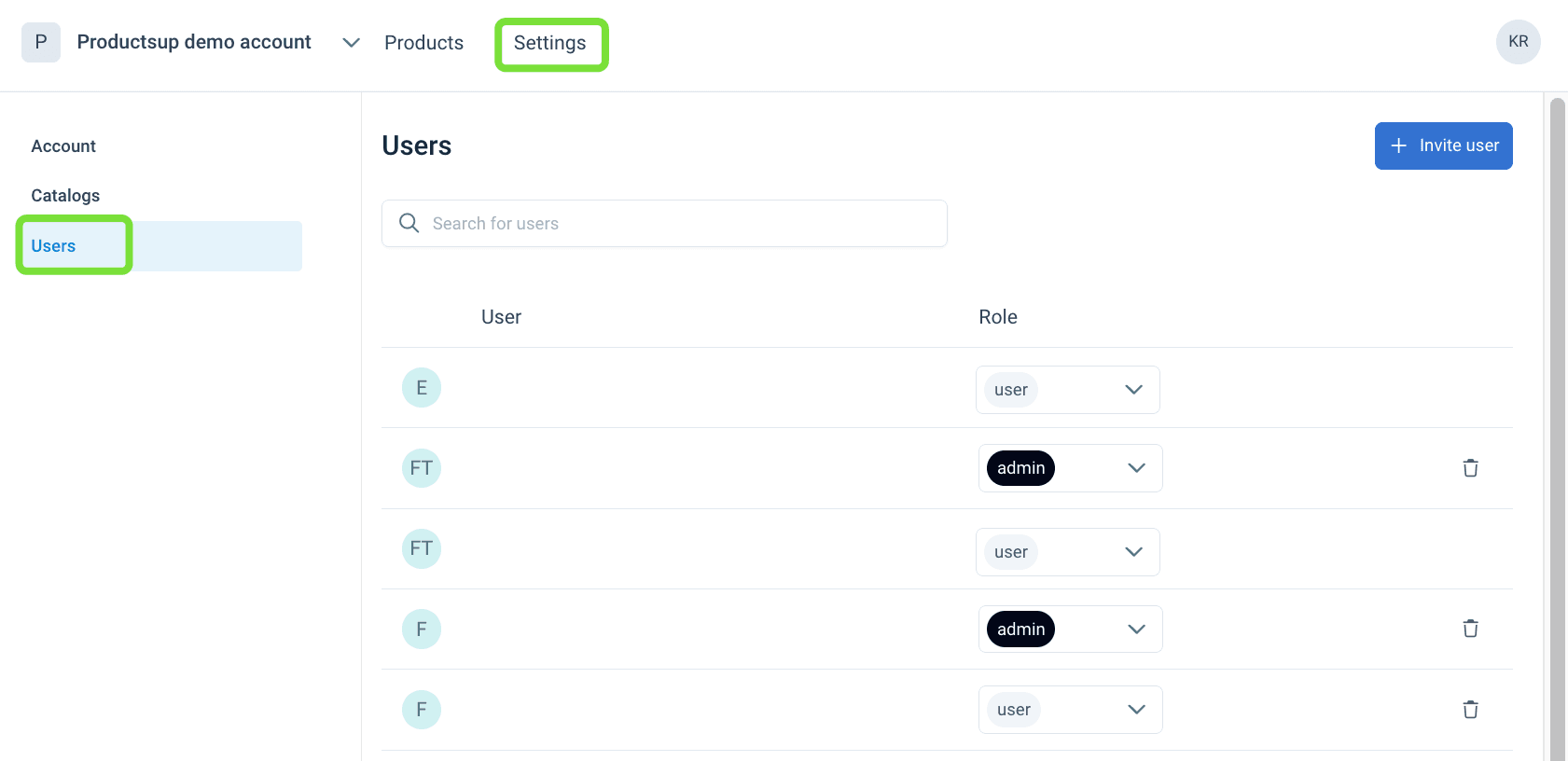
Users list
Select Settings.
Select Users in the left menu. The Users page lists invited users and their roles in the account, not in a single catalog.
As an Admin, you can:
- Invite new users.
- Change the role in the Role dropdown.
- Delete a user using a trash bin icon.
Invite users
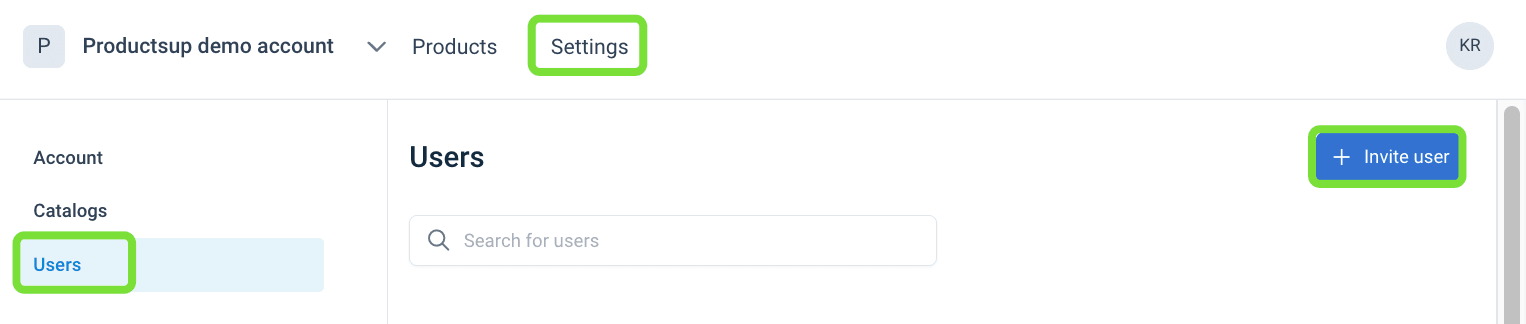
Select Settings.
Select Users in the left menu.
Select Invite user.
Enter the email address or several addresses separated by a comma (,).
Press Enter or Return.
In Role, choose Admin or User.
In Available catalogs, select the catalogs the user should access, or choose Select all.
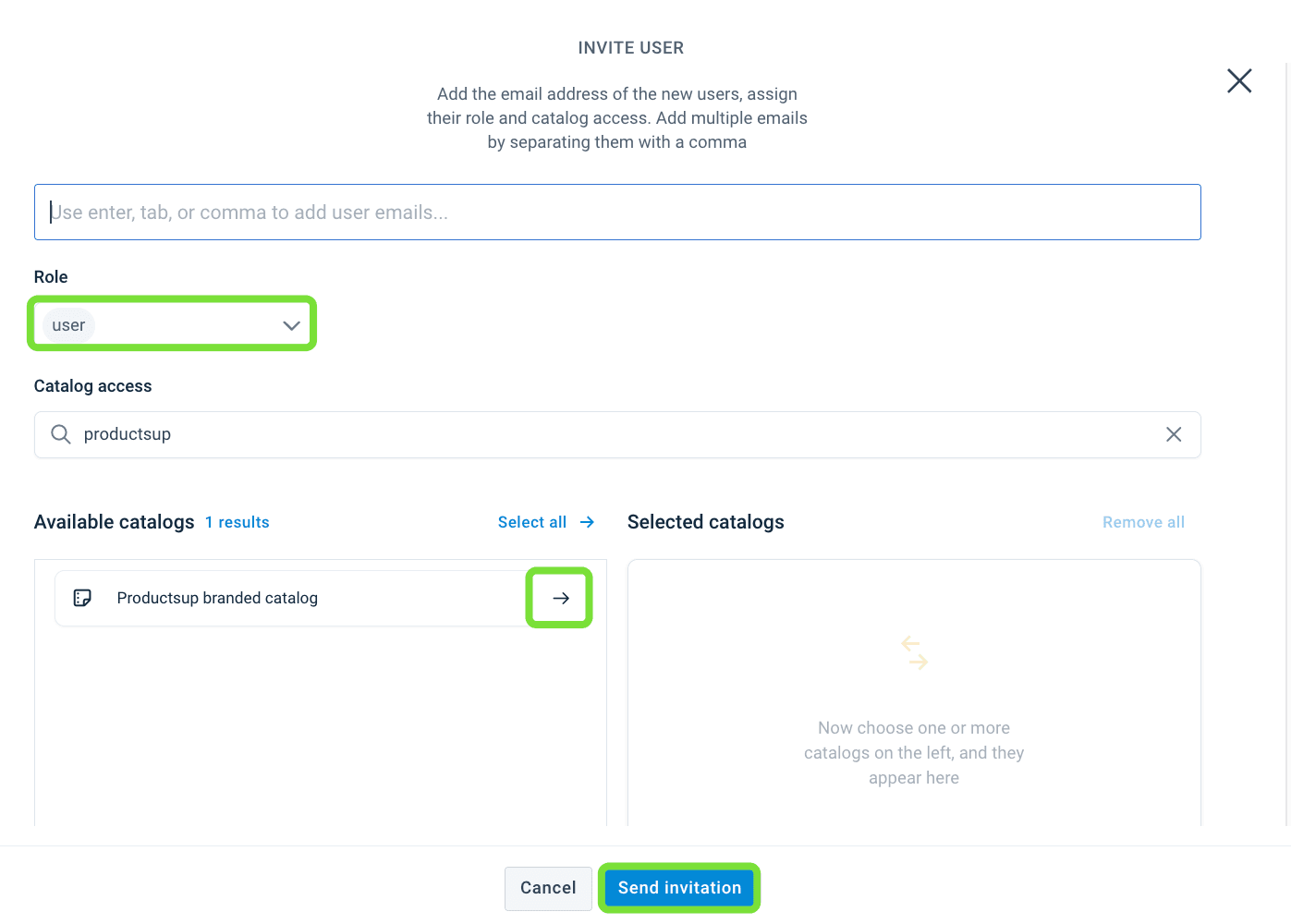
Select Send invitation. Content Portal sends an access link by email. The invitation expires after seven (7) days.
The invited user receives the email and must accept the invitation. Until they accept, they cannot log in. After they accept, they can log in to Content Portal.
Add users to a catalog
You can grant catalog access when you invite a user, or later from the catalog.
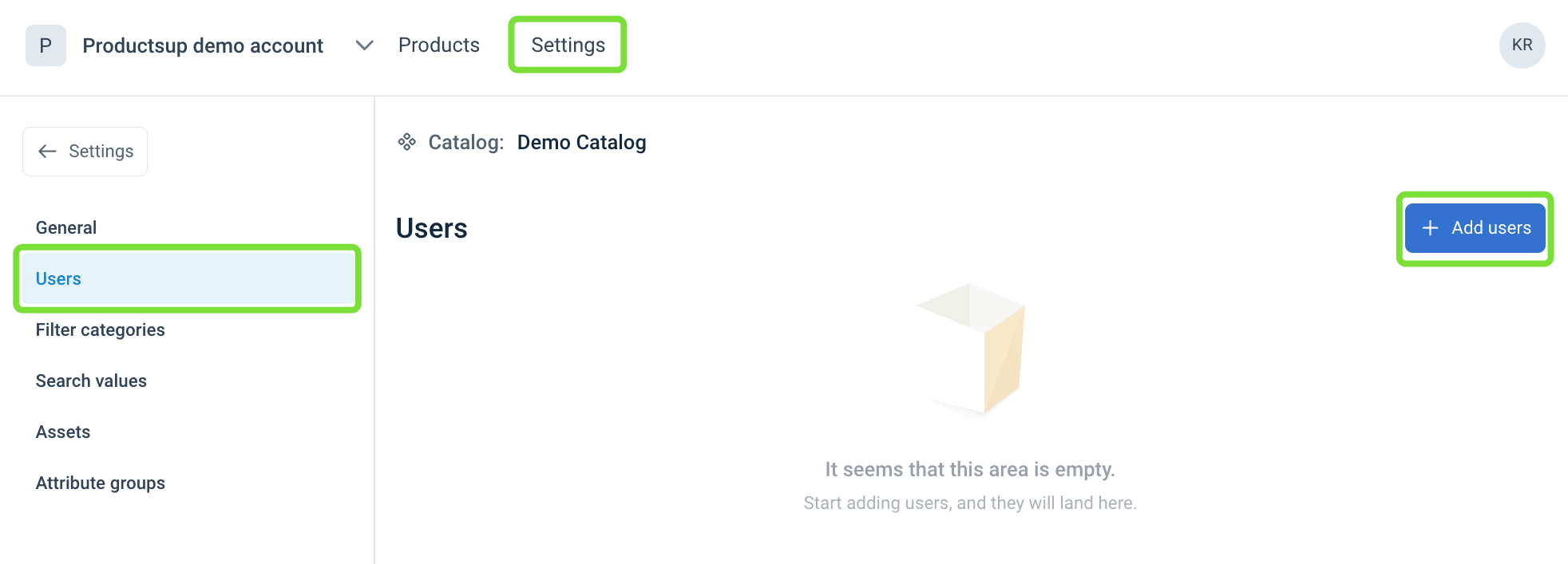
Go to Settings.
Select Catalogs.
Open the catalog, then select Users.
Select Add users.
Start typing a user name and select from the dropdown.
Select Add.
To remove a user from the catalog, select the trash bin icon next to the user name.
How is this guide?